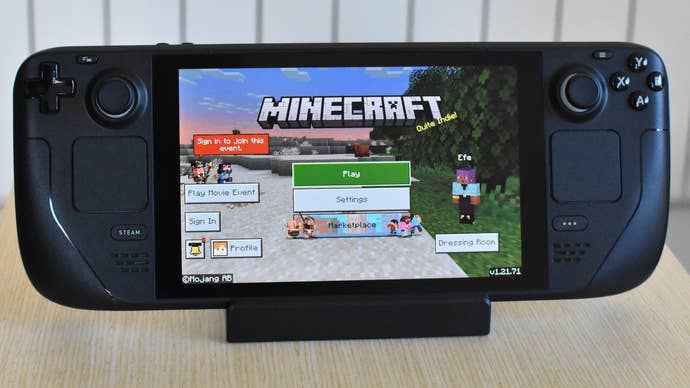
Installing Java and Bedrock on Your Steam Deck: A Simplified Guide
The good news is that you don’t have to dig deep into your Steam Deck’s file directories to install Java and Bedrock. All the necessary tools are easily accessible in Desktop Mode, and they can be operated using just the right trackpad and onscreen keyboard.
However, using physical peripherals like a mouse and keyboard will make this process much smoother and less fiddly. If you’re new to installing software on your Steam Deck, it’s worth considering investing in some peripheral accessories to streamline the experience.
To get started, we’ll be focusing on the Prism Launcher for Minecraft Java and the Minecraft Bedrock Launcher for the other version. These tools are similar to Lutris in that they simplify the process of downloading and installing non-Steam software, particularly for single, blocky survival games like Minecraft.
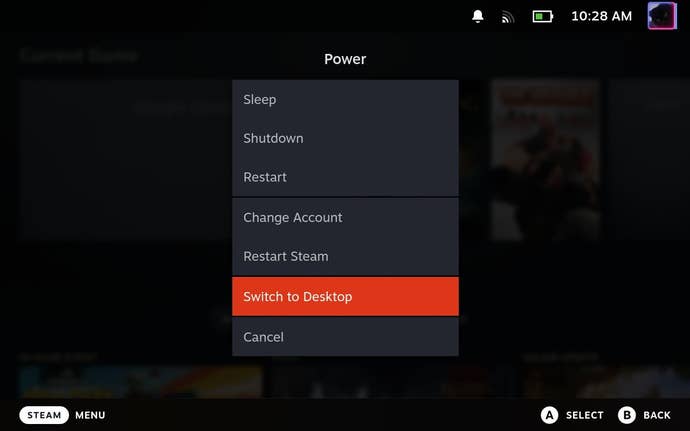
Step 1: Hold down the Steam Deck’s power button and select “Switch to Desktop”.
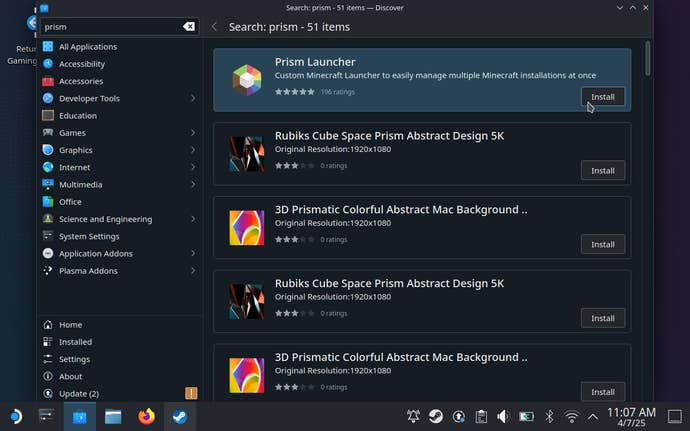
Step 2. Once you’re in Desktop Mode, open Discover (click the blue suitcase, or shopping bag, or whatever it is in the tasbar), search for Prism Launcher. Click “Install” once it shows up in the results.
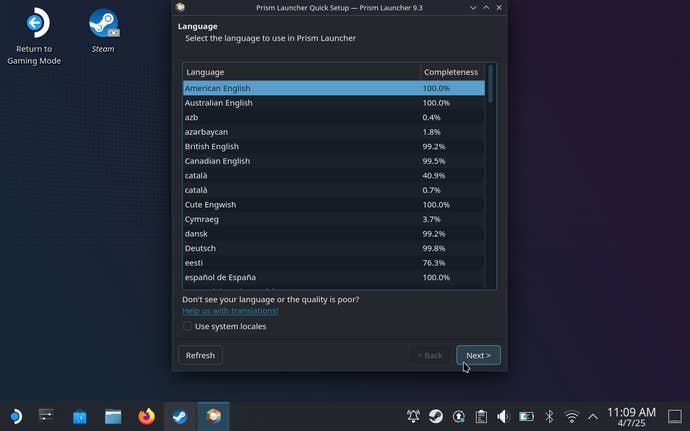
Step 3: Launch Prism Launcher, select a language, and click “Next”.
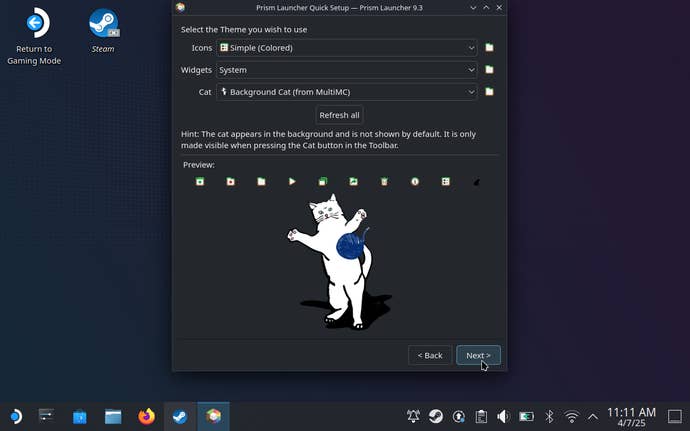
Step 4: Choose your theme settings – it’s fine to leave everything on the defaults – and click “Next”.
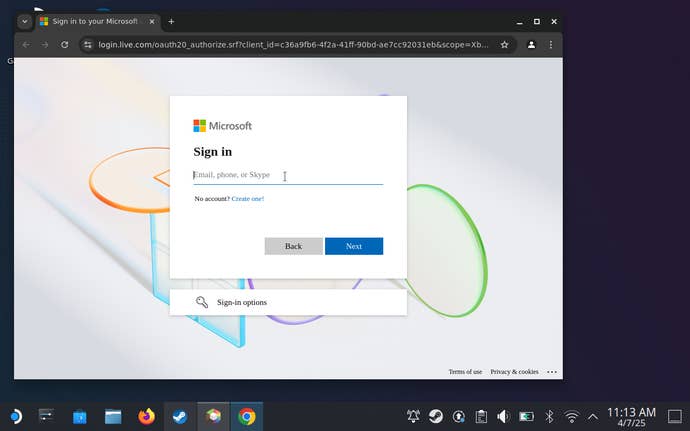
Step 5: On the next screen, you’ll need to sign into the Microsoft account that you use to play Minecraft elsewhere. Click “Add Microsoft Account” and log in, either via the browser link, or by scanning the QR code and entering the security code. If you choose the latter, you’ll obviously need to be logged into your Microsoft account on your phone as well. Once signed in on your Deck, grant Prism Launcher access to your account.
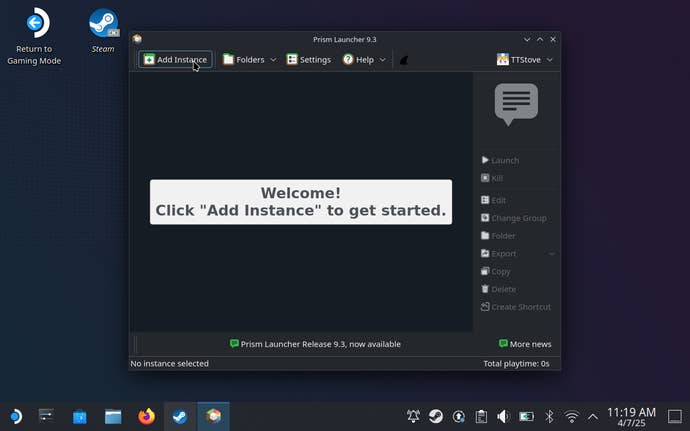
Step 6: You should now be inside Prism Launcher proper. As it says, your next step is to click “Add Instance” up in the top-left corner.
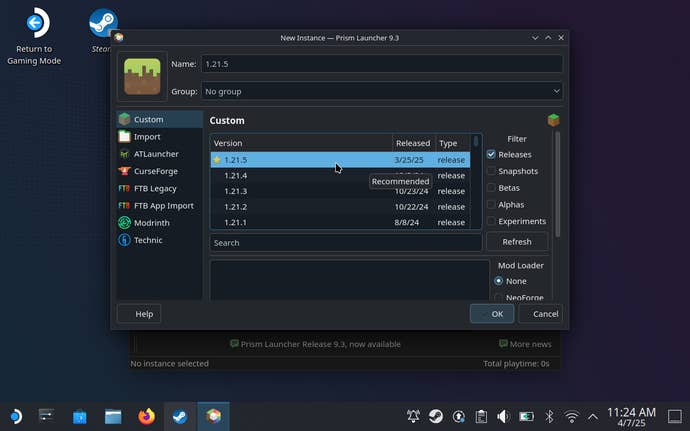
Step 7: In the main central pane, you’ll see a list of Minecraft Java versions that Prism Launcher can install. There are also filters on the right that will let you choose from snapshots and experimental versions, and even old alpha and beta builds, but for now let’s just select the most recent stable build.
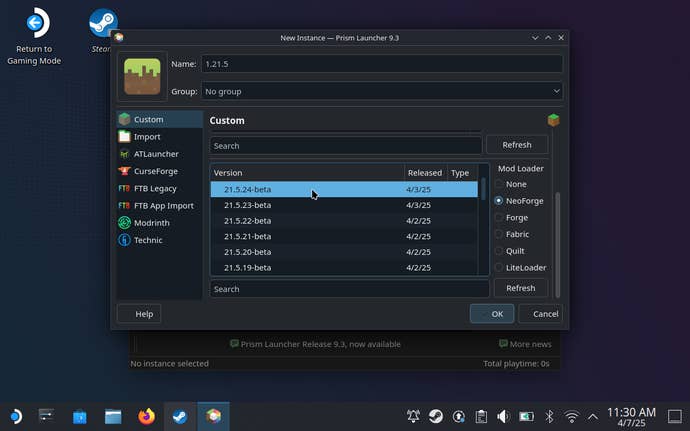
Step 8: Scroll down slightly and you’ll see the option to add a Minecraft mod loader as well. This is optional, but recommended, with both NeoForge and Fabric being especially good bets; I’m going with the latest NeoForge build in these screenshots. As with the list of Minecraft versions, click on the mod loader version you want to install.
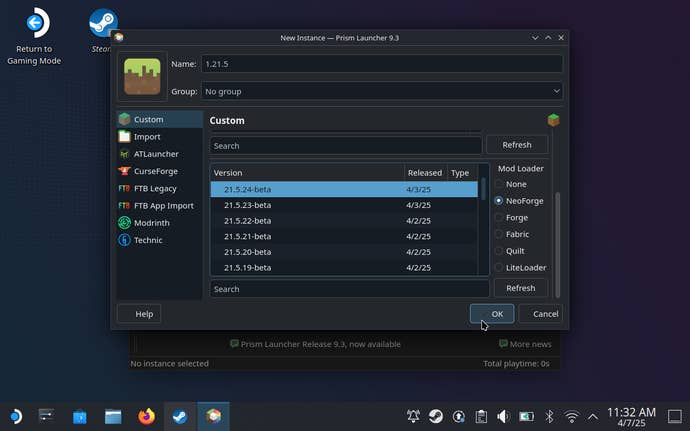
Step 9: With both your chosen Minecraft and mod loader versions selected, hit “OK”.
Step 10: Back on the main screen, double-click the added instance (or click it once then hit Launch). Prism Launcher will then set about installing Minecraft, along with the mod loader if you selected one.
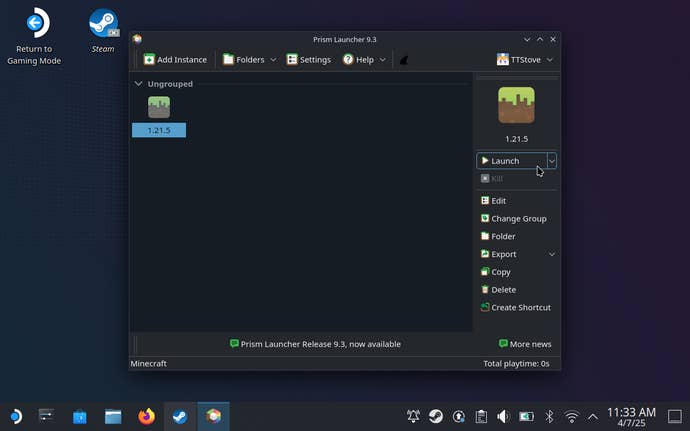
Step 11: After a few moments, Minecraft will launch. Congratulations: you have technically installed Minecraft on your Steam Deck. But! It won’t be playable yet, as Minecraft Java lacks proper controller support, which the Steam Deck needs. Let’s sort this out next, while simultaneously making it possible to use Prism Launcher directly from the Deck’s default Gaming Mode.
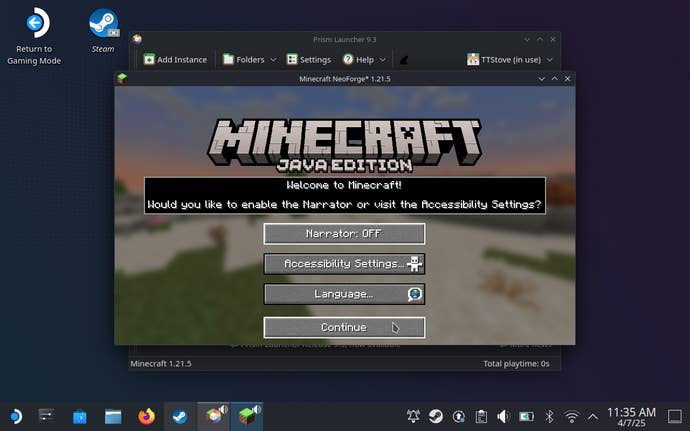
Step 12: While still in Desktop Mode, open Steam, click “Games” at the top and select “Add a Non-Steam Game to My Library”. Scroll through the list of your installed apps and you should find Prism Launcher – click on it, then click the “Add Selected Programs” button.
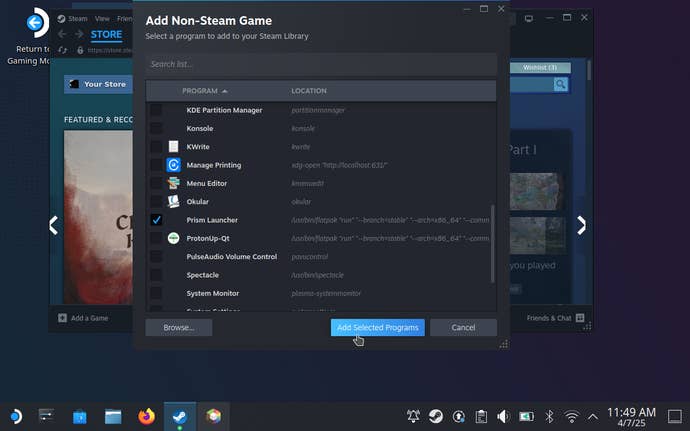
Step 13: Restart your Steam Deck to boot back into Gaming Mode. You can now find Prism Launcher in your Steam Library, under the Non-Steam tab. Select it, but don’t launch it yet. Instead, select the controller icon on the right to open up Controller Settings.
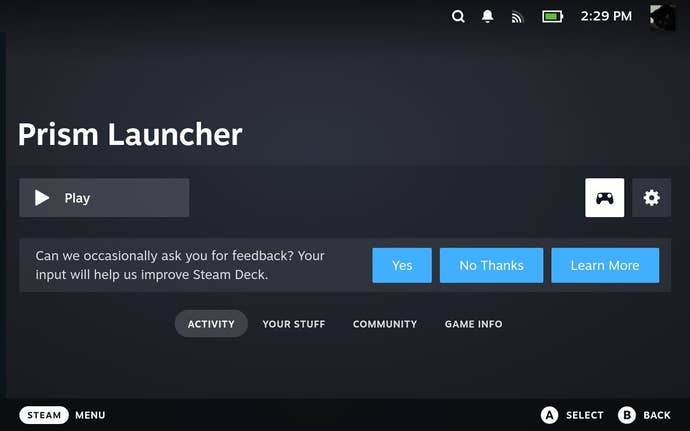
Step 14: Tap on or select the Current Button Layout selection, which should read “Gamepad with Joystick Trackpad” by default. Tap R1 to view the community layout options, then scroll down and select the “Minecraft (Prism Launcher) – Steam Controller” layout by Terminations. Once it’s downloaded, tap the X button to apply it.
Step 15: Finally, fire up Prism Launcher and use it to launch Minecraft – as in Desktop Mode, you can double-click/tap or use the Launch button to play your installed version. Now you’re finished.
Don’t skip the part about adding Prism Launcher as a non-Steam game; besides saving you the trouble of having to swap into Desktop Mode every time you want play Minecraft on your Steam Deck, it lets Steam Input step in to fill the void of the Java edition’s missing controller support. You could add this via mods instead – Controllable, for instance – but it’s just easier to let Steam handle everything. You can still customise inputs via the same Controller Settings page, and are less likely bump into the potential compatibility problems that mods may have if they don’t immediately work with new versions of the game.